Student
Who this guide is for
This guide is for users with the global Student role. It covers everything you need from signing in for the first time to submitting assignments and reviewing your grades.
What you can do
- Request access to a class with a class code.
- View approved classes and navigate published content.
- Open and download published materials.
- Use the chat inside published lessons.
- Submit, replace, or withdraw assignments before the due date.
- View only your own grades and feedback.
Getting started
Task: sign in
Goal
Access the product with your account.
Before you start
- You need a registered email and password.
Steps
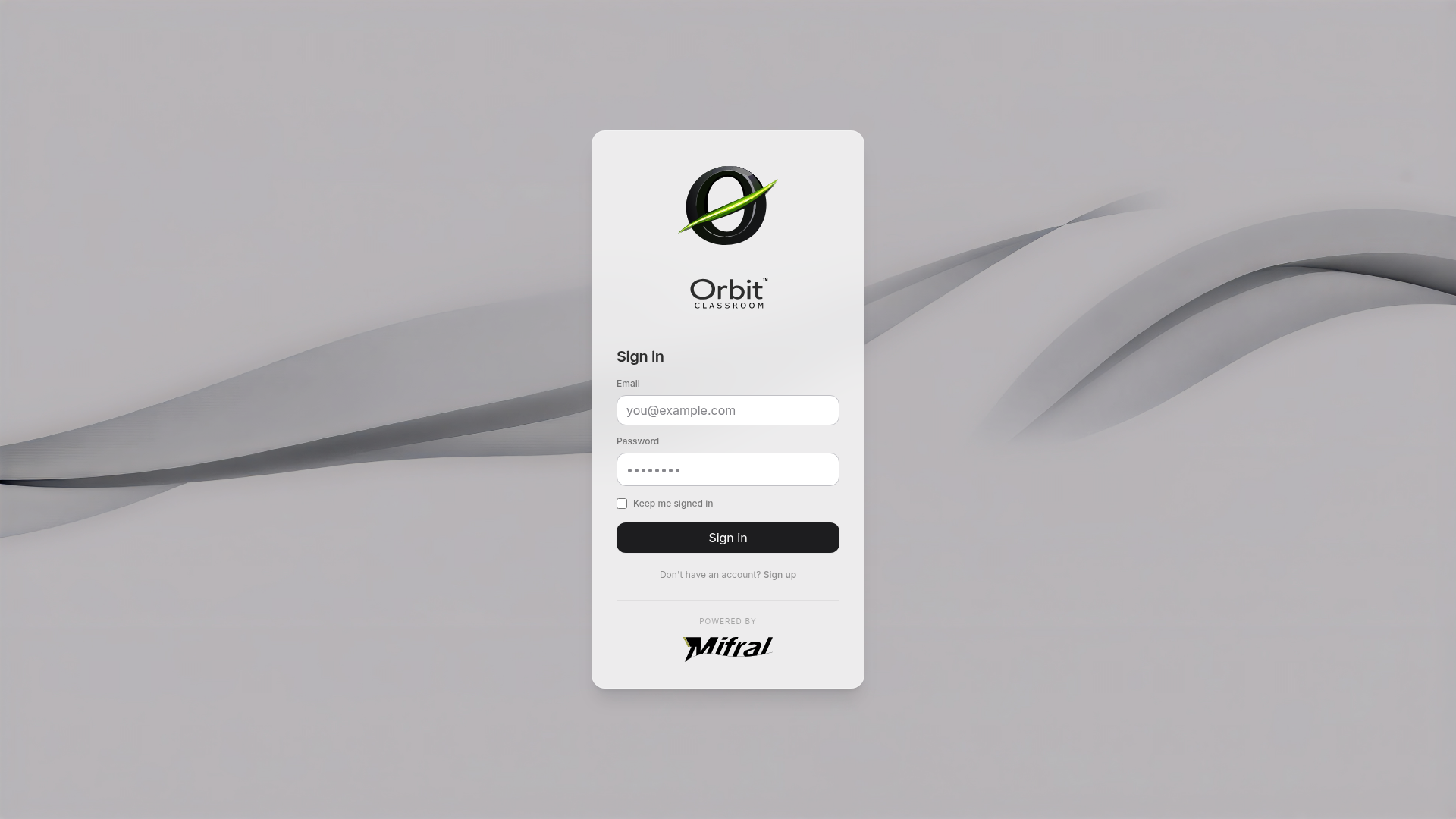
- Open the access screen.
- Enter your email.
- Enter your password.
- Confirm access.
Expected result
The system takes you to your current access state: a waiting screen if you have no active role, or directly to the dashboard.
Limits and notes
- v1 does not require email verification.
- v1 has no password reset flow inside the product.
Task: understand the role waiting screen
Goal
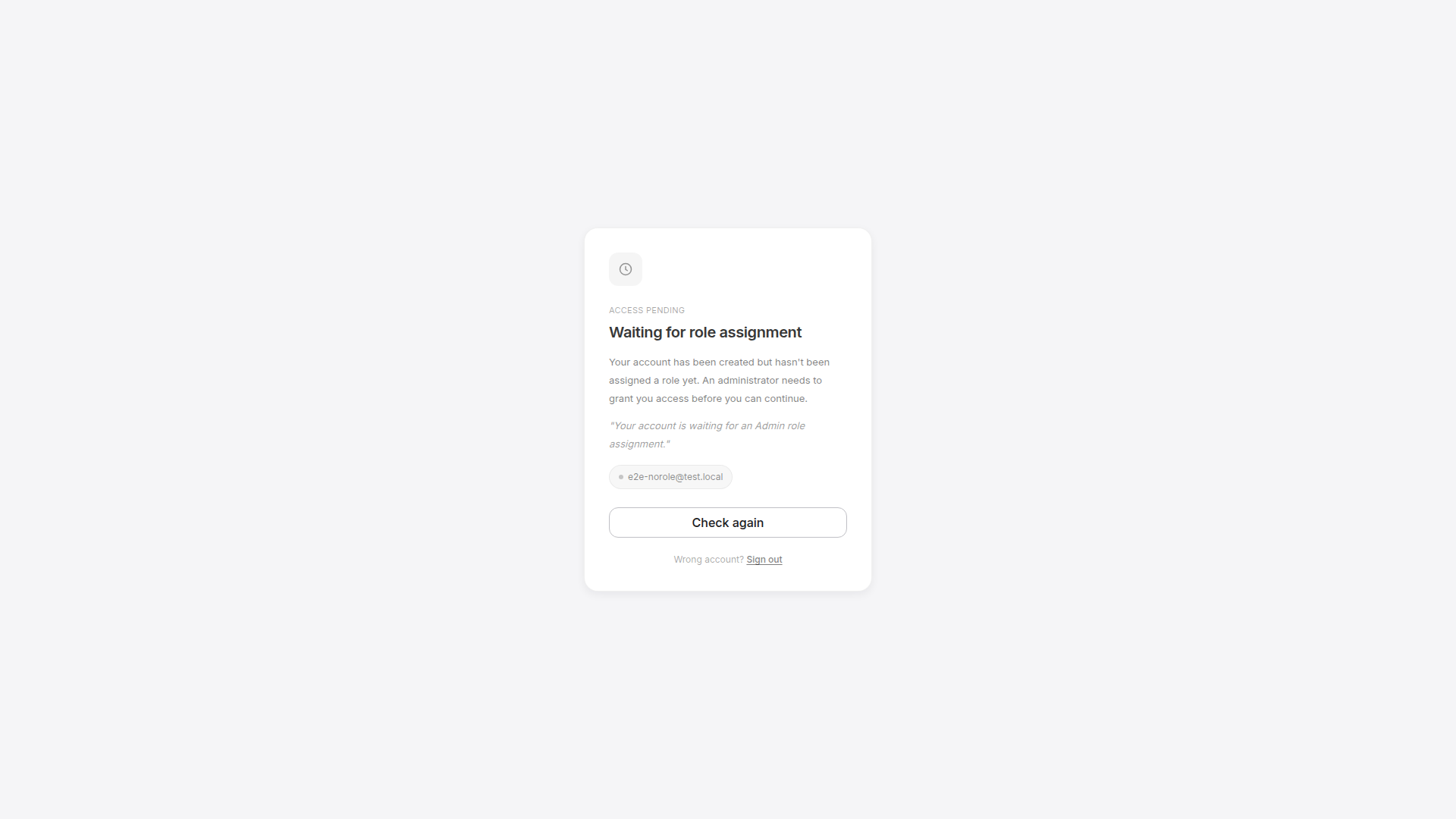
Recognize the normal state of an account that does not yet have an active role.
Before you start
- You have already signed in.
Steps
- Sign in with your account.
- Check if you see a pending access message.
- Confirm that the screen only shows your account identity and approval status.
Expected result
If you have no role, you see only a minimal waiting screen. You cannot access classes, chat, or grades until an Admin activates your access.
Limits and notes
- This state is normal for new accounts.
- Global role approval depends on an Admin.
- This screen does not indicate a technical error on its own.
Task: confirm your role has changed
Goal
Verify that the Student role is now active on your account.
Before you start
- An Admin has already told you your role was assigned or updated.
Steps
- Sign out.
- Sign in again with the same account.
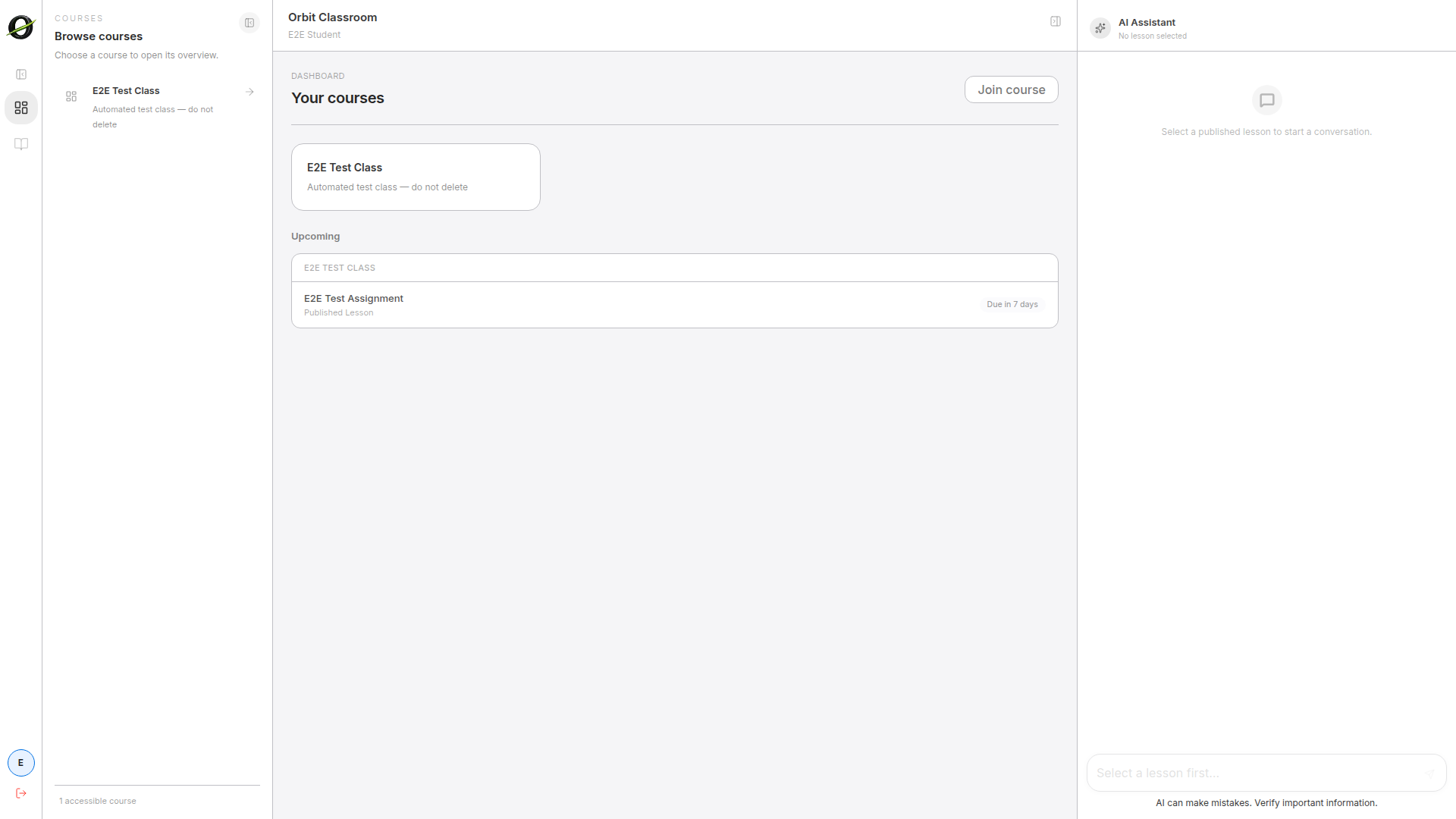
- Check whether you now see the dashboard and Student options.
Expected result
Your Student role is active and you can access the dashboard after signing back in.
Limits and notes
- Role changes do not take effect in the current session.
- You must always sign out and sign back in.
Navigating
Task: go from the dashboard to a lesson
Goal
Open a class and reach the lesson where you want to study or use the chat.
Before you start
- You have an active Student role.
- You can see the dashboard.
- You have at least one approved class.
Steps
- Go to the dashboard.
- Open a class available for your account.
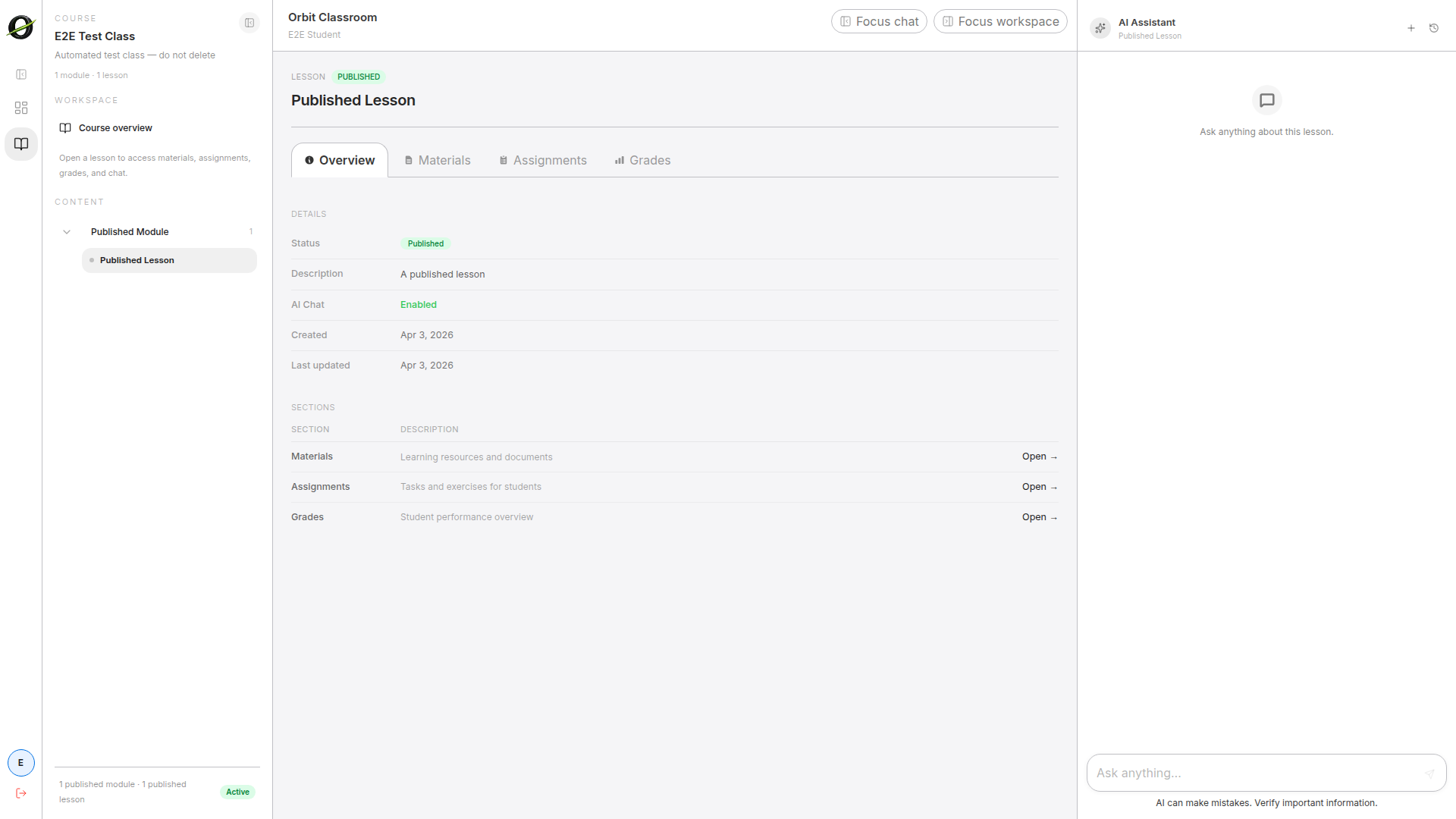
- In the left panel, navigate the hierarchy
Class -> Module -> Lesson. - Select the lesson you want to open.
Expected result
The class opens in its workspace and the lesson appears in the central area with its tabs.
Limits and notes
- Only published modules and lessons appear in normal navigation.
- You cannot access draft content or class settings.
Task: understand when the right panel is active
Goal
Know when you can use the assistant and when you will only see an inactive state.
Before you start
- You have entered a class.
Steps
- Open a published lesson.
- Check the right panel.
- If you are not inside a published lesson, confirm the panel is disabled.
Expected result
The right panel is only interactive inside a published lesson. Outside that context, the panel is disabled and prompts you to select the correct lesson.
Limits and notes
- There is no chat tab in the center.
- There is no free-form chat per class or personal chat outside a lesson.
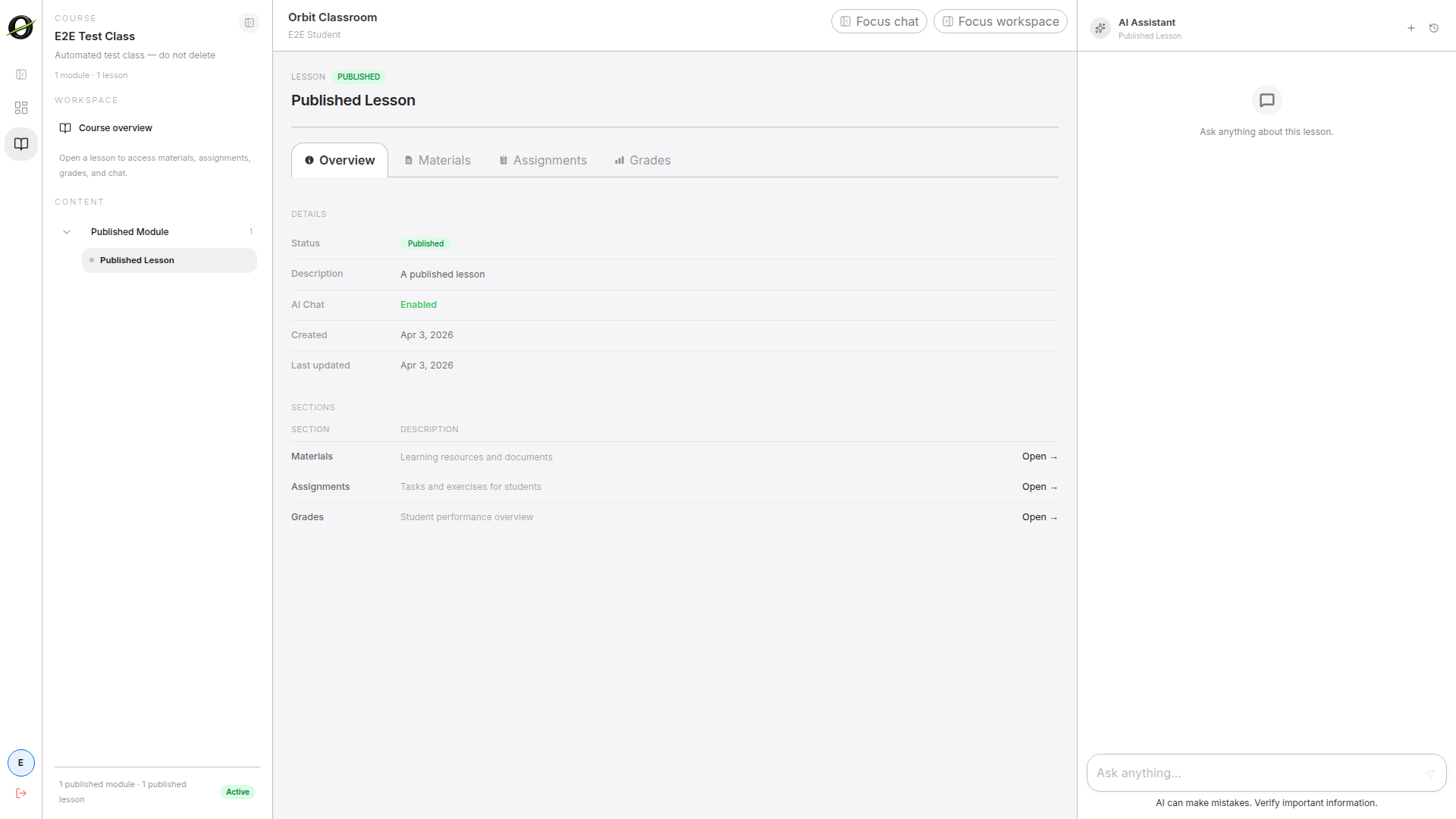
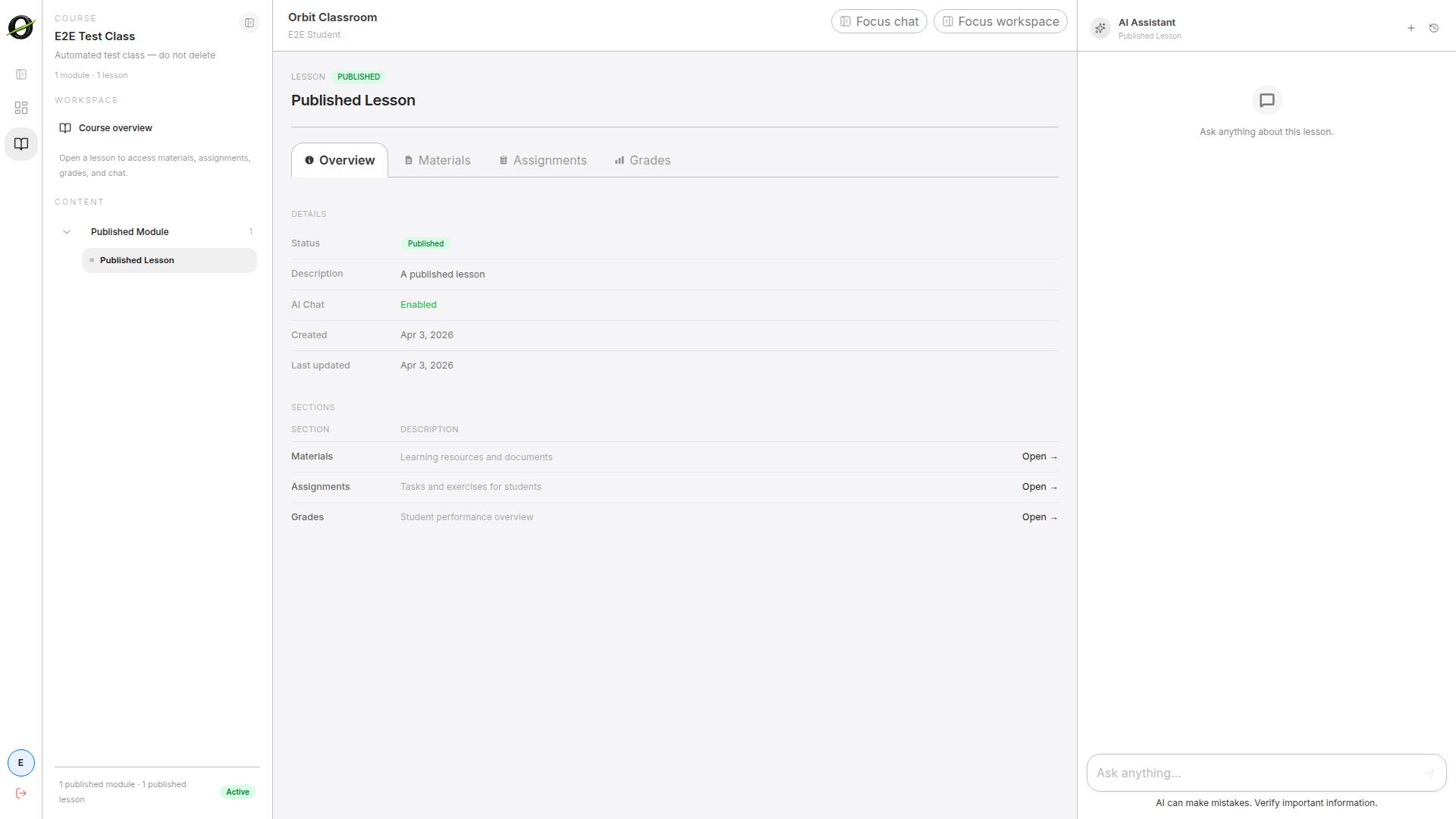
Task: recognize the lesson tabs
Goal
Find the type of action you need without looking in the wrong place.
Before you start
- You have opened a lesson.
Steps
- Review the tabs visible in the lesson:
Overview,Materials,Assignments,Grades. - Use
Materialsto study resources. - Use
Assignmentsto see instructions and submit files. - Use
Gradesto view your published grades.
Expected result
You know where to study materials, submit assignments, and review grades without navigating outside the lesson.
Limits and notes
- Grading happens in
Grades, not inAssignments. - You do not have access to the
Settingstab. - The published navigation tree does not show draft content.
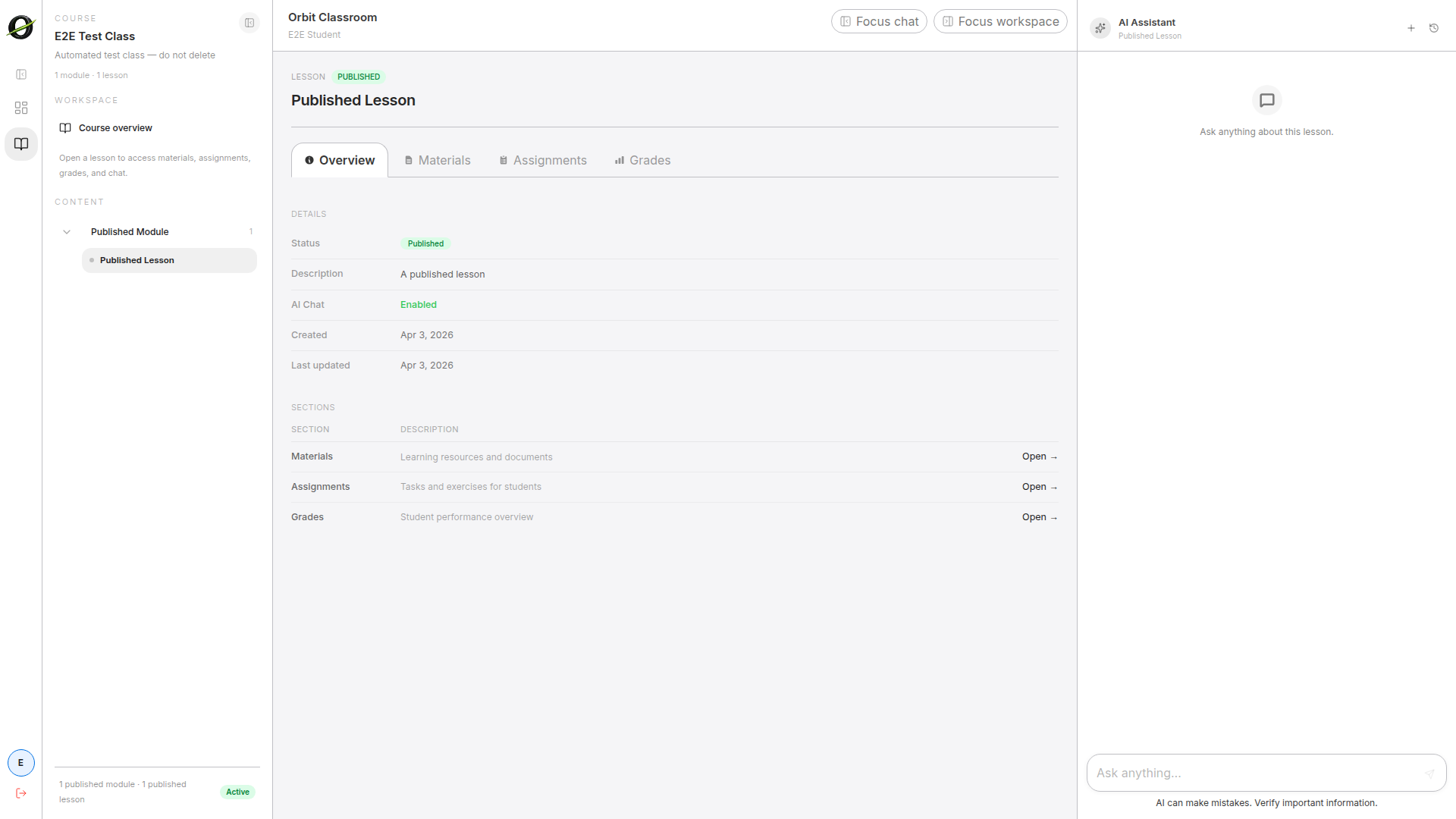
Classes
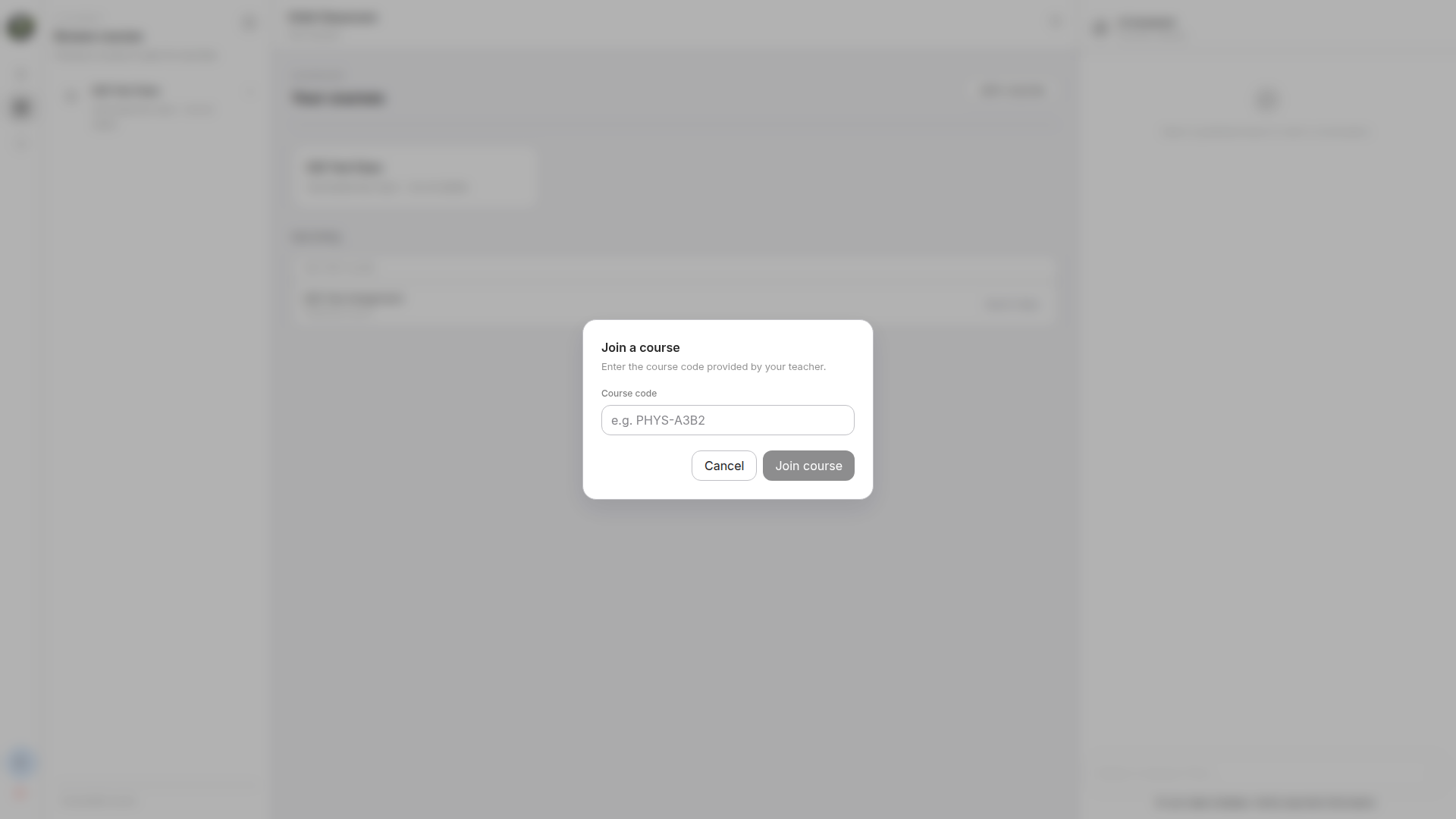
Task: request access to a class with a class code
Goal
Enter a class you do not yet belong to.
Before you start
- You have an active Student role.
- You are signed in.
- You have a valid class code.
Steps
- Go to the dashboard.
- Find the option to join a class.
- Enter the class code.
- Confirm the request.
Expected result
A request is created with Pending status until a Teacher or Admin of that class approves or rejects it.
Limits and notes
- If your request is approved, access starts immediately.
- If it was rejected or you were removed later, you can request the same class again.
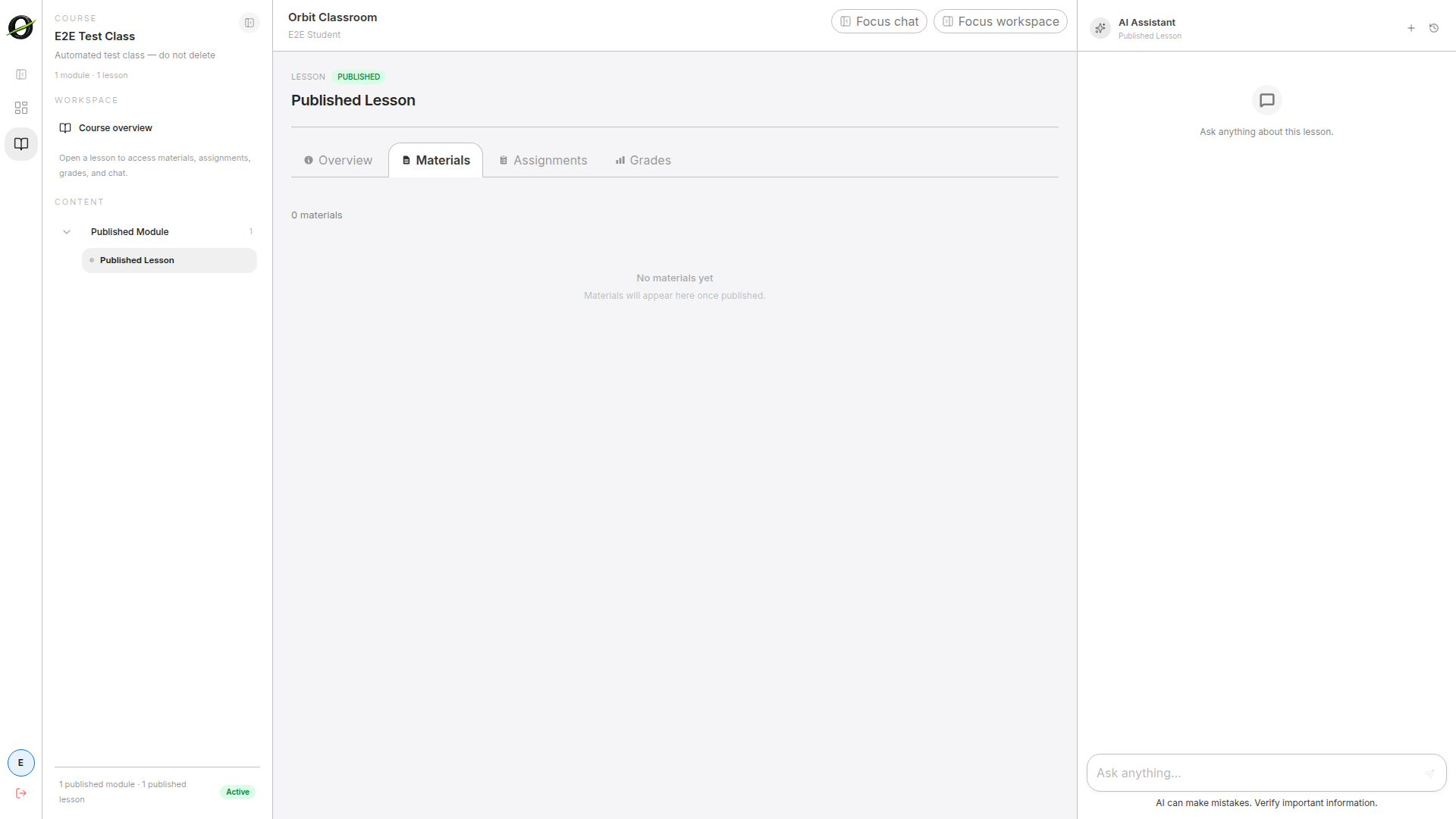
Materials
Task: study materials in a published lesson
Goal
Open the visible resources in a lesson to study before chatting or submitting an assignment.
Before you start
- You have approved access to the class.
- You have opened a published lesson.
Steps
- Go to the
Materialstab. - Review the list of visible resources.
- Open the material you need.
- Download the file if you want to review it outside the browser.
Expected result
You see only published and ready materials, with their automatic summary when one exists.
Limits and notes
- You will not see materials that are processing, failed, or unpublished.
- If a material is reused across several lessons, it is still the same shared resource.
Chat
Task: use the chat in a lesson
Goal
Ask the assistant within the correct context of a published lesson.
Before you start
- You have opened a published lesson.
Steps
- Confirm you are inside a published lesson.
- Go to the right panel.
- Type your question.
- Review the response, citations, and context notices when they appear.
Expected result
The assistant responds within the context of that lesson and saves the chat as your private history for that lesson.
Limits and notes
- You can have multiple chats per lesson.
- Your chats are private; Teachers and Admins do not see them in the normal flow.
- If the lesson is not published, the chat does not work.
- The system may show a notice if it answers with general knowledge instead of class material.
You: What is the main topic of this lesson?
Assistant: This lesson covers [topic summary based on indexed materials]. (Cited from: material title)
If no material has been indexed yet, the assistant notes that it is answering from general knowledge instead of class content.
Assignments
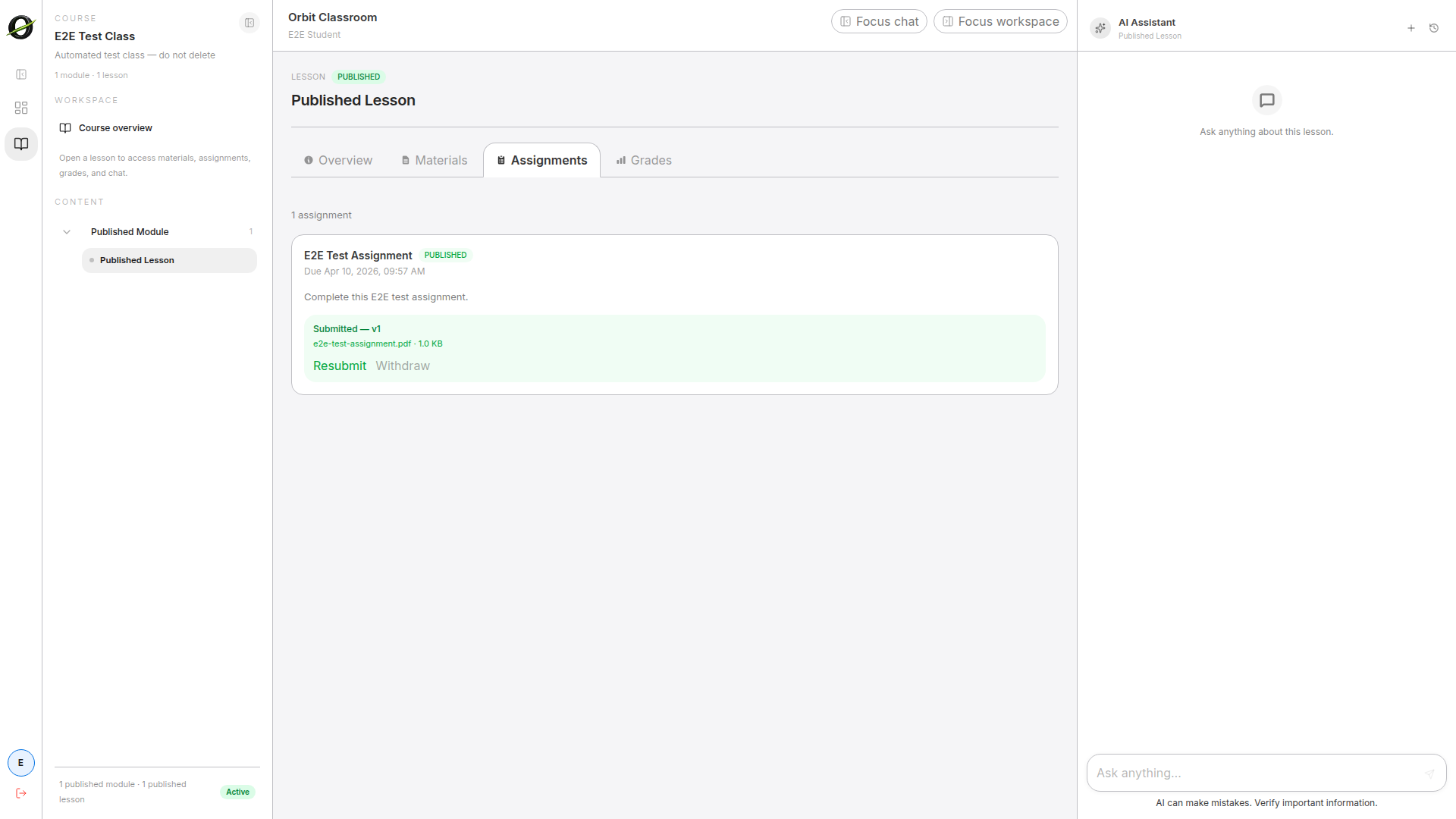
Task: submit or replace an assignment
Goal
Upload files for an assignment from the correct view.
Before you start
- You have opened the correct lesson.
- The assignment is already published.
- You have files allowed by the assignment.
Steps
- Go to the
Assignmentstab. - Click on the assignment to expand it.
- Review the instructions and due date.
- Upload one or more files.
- Confirm the submission.
Expected result
Your current submission is recorded for that assignment. If you upload again before the due date, your new submission replaces the previous one from your perspective.
Limits and notes
- Maximum file size is 30 MB.
- You can resubmit as many times as needed before the due date.
- If you submit after the due date, the submission is marked as late.
- Grades and feedback do not appear in this view.
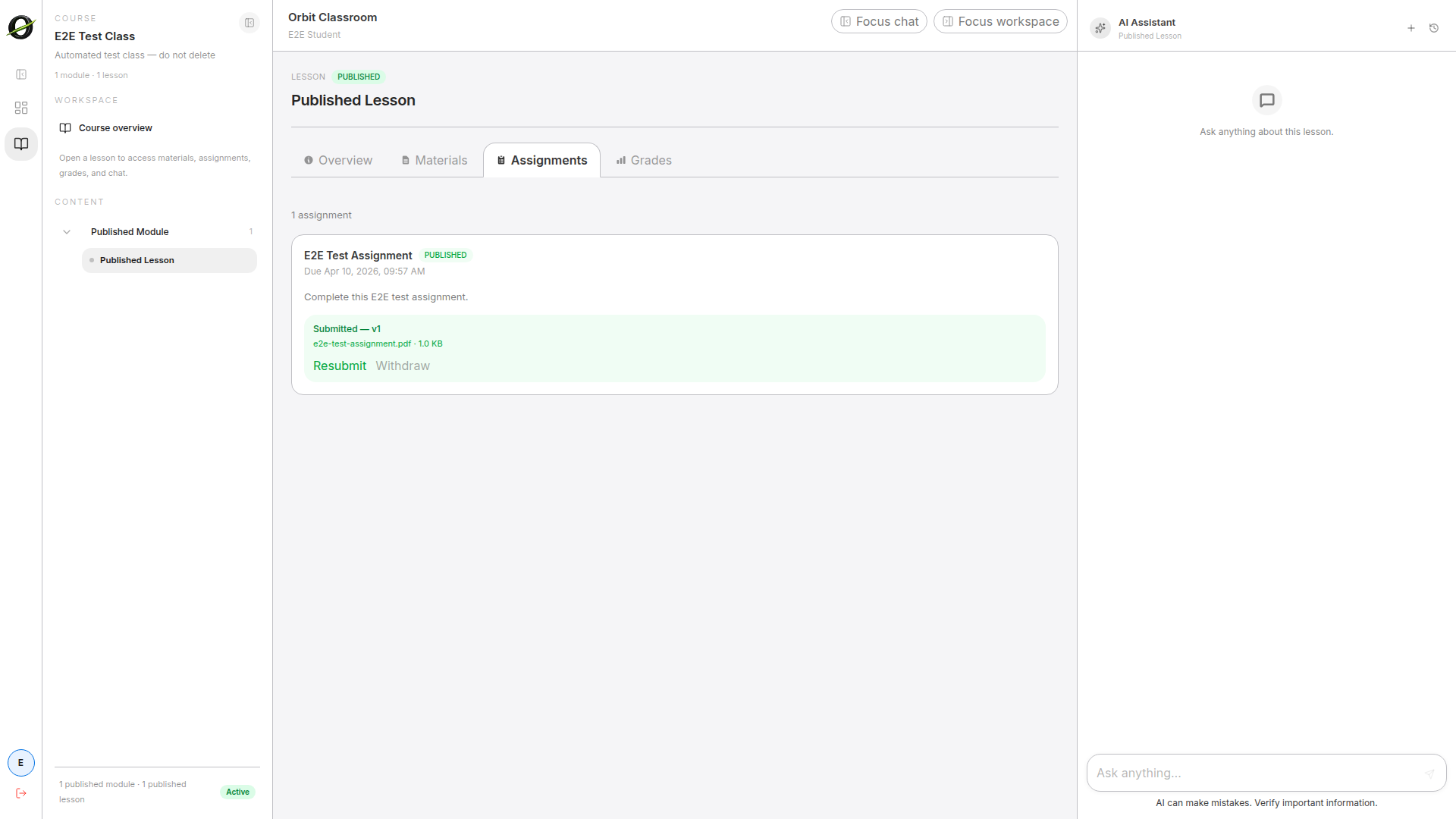
Task: withdraw a submission before the due date
Goal
Return to a not-submitted state while the due date is still open.
Before you start
- You already have a current submission for that assignment.
- The due date has not passed.
Steps
- Open the assignment again in the
Assignmentstab. - Verify you are still before the due date.
- Use the withdraw or remove action on your current submission.
Expected result
Your current submission is withdrawn and you return to a not-submitted state.
Limits and notes
- After the due date you can no longer withdraw an existing submission.
- Teachers and Admins retain an internal submission history, even if you withdraw your current submission.
Grades
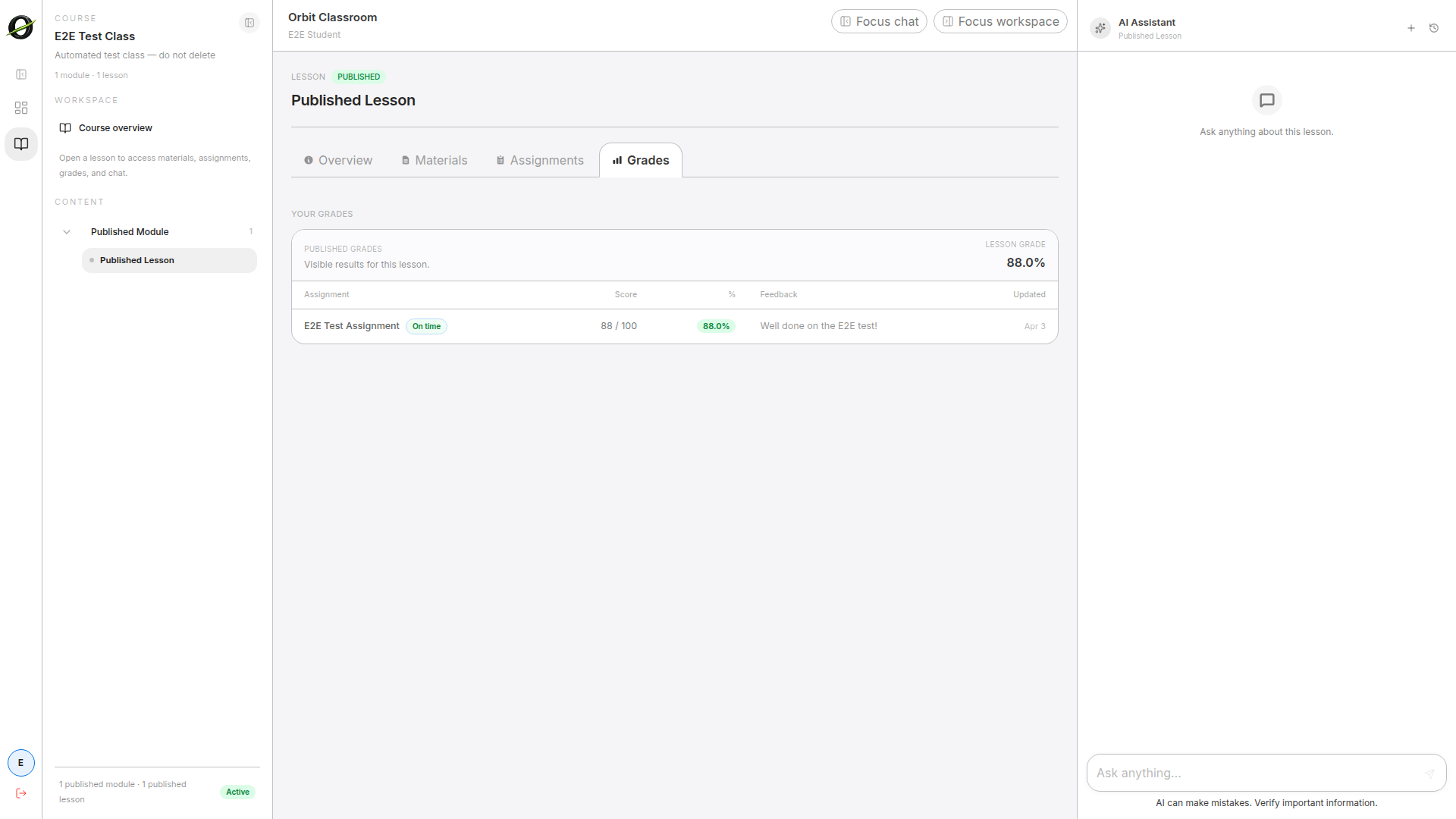
Task: review your grades and feedback
Goal
View your published results inside the current lesson.
Before you start
- The Teacher or Admin has already published at least one grade row.
Steps
- Go to the
Gradestab. - Review your overall lesson grade if it exists.
- Select an assignment row to see its detail.
- Read the published grade and published feedback.
Expected result
You see only your own published grades and their feedback.
Limits and notes
- If a row was unpublished, the assignment remains visible but the grade cell appears empty.
- You will not see other users' grades, comparisons, or rankings.
- The overall lesson grade is calculated only from published rows.
When to ask for help
- If a class does not appear after being approved, reload the dashboard and confirm with your Teacher or Admin.
- When reporting a problem, share your role, the affected class or lesson, and a screenshot of the state you see.